Publishing a Notion page to the web takes three clicks: open the page, hit Share in the top right, switch to the Publish tab, and select Publish. Your page is now a live website on a notion.site URL that anyone with the link can open, and it updates automatically whenever you edit the page.
That's the answer to the question. The rest of this guide covers what Notion doesn't put on the button: what you actually get, six gotchas that surprise people, and when publishing raw Notion stops being enough.
What you get when you publish
On every Notion plan, published pages include:
- A public URL on your workspace's
notion.sitedomain - Automatic updates whenever you edit the page in Notion
- A toggle for search engine indexing
- Unlimited published pages
On paid plans, Notion adds site-level extras: custom URL slugs (up to 60 characters), editable SEO title and description, site customization options, Google Analytics integration, and the option to purchase a custom domain add-on.
For a personal page, a portfolio, or a quick public doc, this is genuinely all you need. Publish it and move on.
The six gotchas
These are the things people discover after publishing, in roughly the order they discover them.
1. Your subpages publish too
Publishing a page publishes everything nested inside it unless you restrict subpage permissions individually. Before you share that project hub, check what's actually inside it. More than one team has published a parent page without realizing meeting notes were sitting three levels down.
2. Contributor names and emails are visible
The metadata of a published Notion page includes the names, profile photos, and email addresses of people who worked on it. If your workspace uses work emails (it does), those are now discoverable on a public webpage. For a company page, that alone is often reason enough to publish through another layer instead.
3. There's no password protection
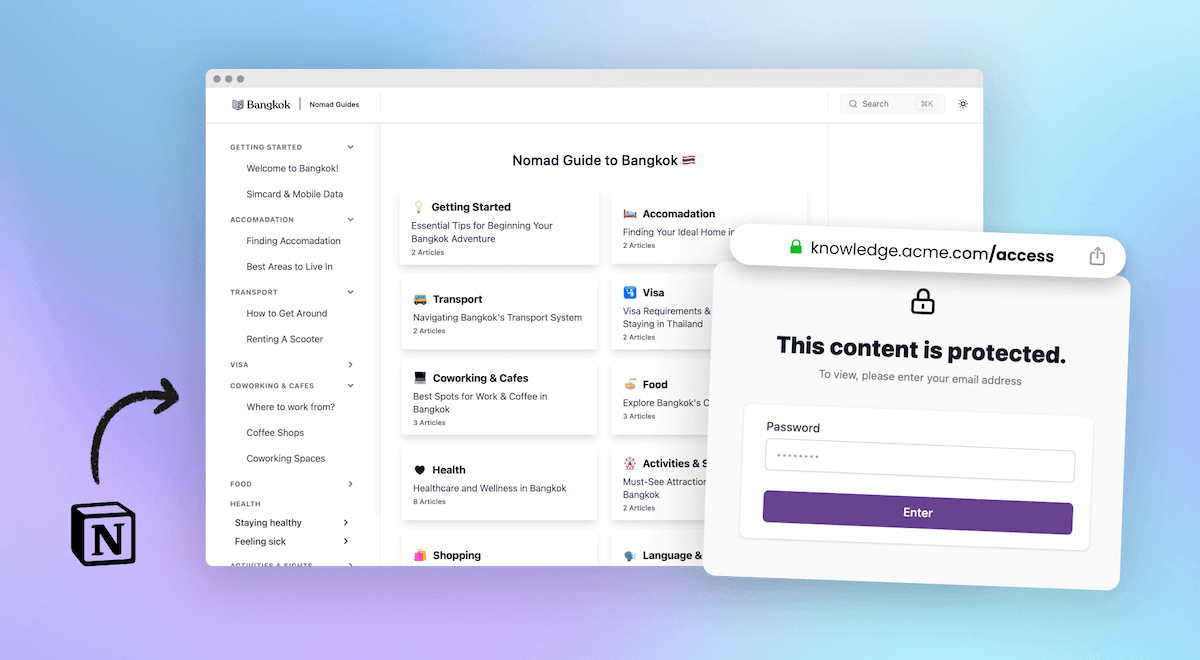
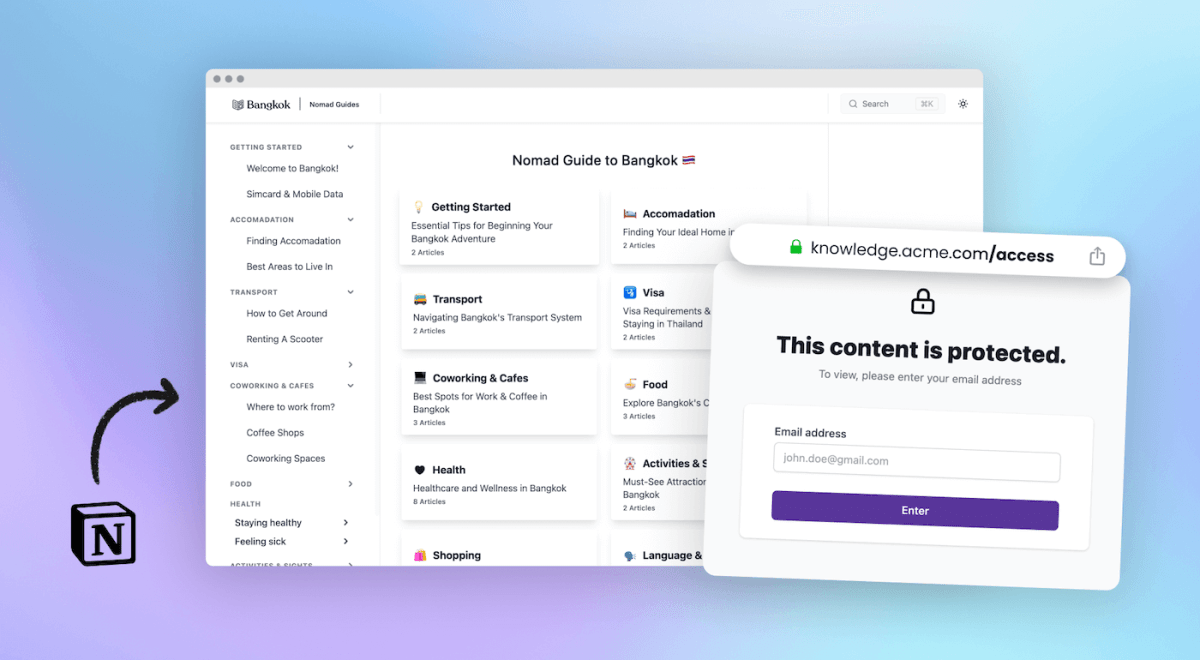
Notion's own help docs are direct about it: password protection for published pages isn't available. A published page is fully public. If you need protected content, whether that's a client portal, an employee handbook, or paid material, you need a tool that adds access control on top of Notion.
4. Search engines can take a month
Notion Sites can take up to four weeks to be indexed and appear in search results. If you're publishing content you want found on Google, that delay matters, and so does the fact that you're building authority on Notion's domain rather than your own.
5. It looks like Notion
Visitors see a Notion page: Notion's layout, Notion's fonts, a notion.site URL (unless you buy the domain add-on). For personal content that's fine. For a company help center or documentation, it reads as temporary, and your brand is nowhere in it.
6. Search and navigation stay basic
A published Notion page has no site-wide search box for your visitors, no category navigation, no analytics about what people looked for and didn't find. Readers scroll and click through your page hierarchy, which works until you have thirty pages and a support inbox full of questions the docs technically answer.
So when is raw publishing enough?
Often, it is. Publish raw Notion when the page is personal, temporary, internal-ish (shared by link with people you trust), or an experiment. The three-click workflow is unbeatable for speed, and nothing else keeps content this effortlessly in sync.
Reach for more when any of these become true:
- The page represents a company. Branding, a real domain, and no exposed contributor emails stop being optional.
- People need to search it. Once your published content is answering customer questions, visitors need search, structure, and a way for you to see what they're not finding.
- Some readers shouldn't see everything. Password, email list, or login-based access doesn't exist in raw Notion publishing.
- You want Google and AI assistants to find it. Ranking on your own domain, with proper meta tags and llms.txt, beats waiting a month for a
notion.sitepage to index.
The upgrade path (keep writing in Notion)
The good news: outgrowing raw publishing doesn't mean leaving Notion. A publishing layer keeps Notion as your editor and adds the missing parts on top.

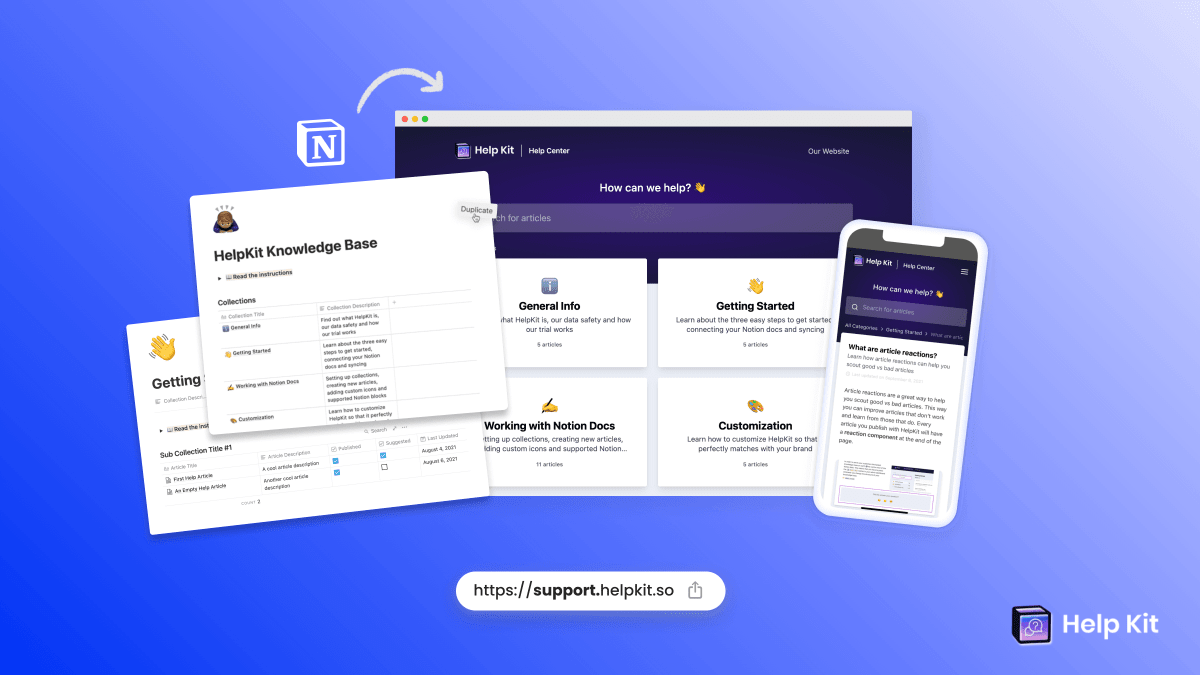
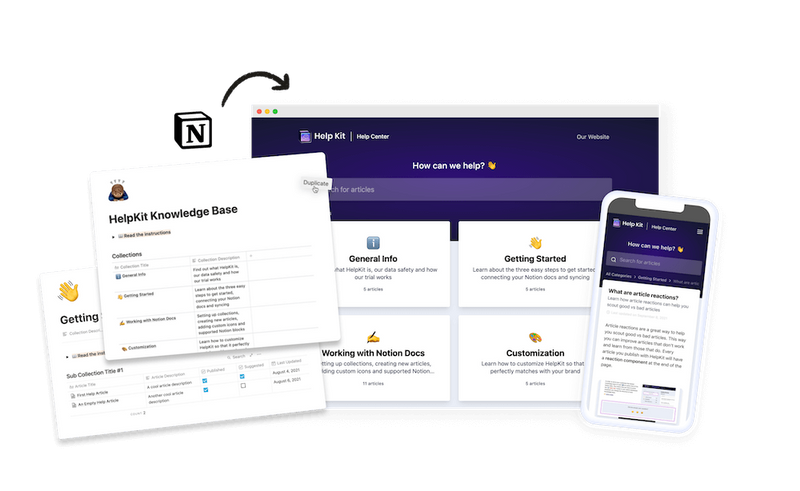
- For help centers and documentation: HelpKit publishes your Notion pages as a professional help center on your own domain, with full-text search, AI answers, analytics, an embeddable widget, and protected access up to JWT auth. Setup runs about 15 minutes; see it at helpkit.so. We compared the whole category in the best Notion help center tools.
- For marketing sites and portfolios: general Notion website builders like Super or Bullet turn pages into custom-designed websites.
Either way, the workflow stays the one you already have: write in Notion, publish automatically.
Frequently asked questions
How do I publish a Notion page to the web? Open the page, click Share, open the Publish tab, and click Publish. The page becomes a public website at a notion.site URL and stays in sync with your edits.
Can I unpublish a page? Yes. Same menu: Share, Publish tab, unpublish. The public URL stops working; your Notion page is unaffected.
Can people edit my published page? No. Published pages are read-only for visitors. Only workspace members with edit access change the content.
Can I use my own domain? Notion sells a custom domain add-on for published sites on paid plans. Alternatively, publishing tools like HelpKit include a custom domain, along with search, branding, and analytics. We break down every option in our Notion custom domain guide.
Can I password protect a published Notion page? Not natively; Notion doesn't offer it. You need a publishing layer with access control. Our guide to password protecting Notion pages covers all the working methods.
Will my published page show up on Google? If you enable search indexing, eventually: Notion says indexing can take up to four weeks. Publishing through your own domain with a tool built for SEO is considerably faster and builds authority you own.

Lena Martinez Support Content Editor
Lena writes about help centers, product documentation and customer self-service. She covers how support teams structure knowledge, what makes an article get read, and where documentation tools actually differ.